Product Overview: The New Signal
Last updated: August 24, 2026
We’re excited to introduce a major evolution of our web platform, Signal. With the launch of a new way of searching, we’ve reimagined the search experience to make it more intuitive, flexible, and efficient. You can access the video preview HERE.
Previously, Signal operated across six distinct modes. With this new update, we’ve unified those into a single, streamlined interface – eliminating friction and enabling a more fluid approach to rate exploration.
What’s New
Automatic Mode Selection
You no longer need to choose a mode before starting a search. Simply apply your desired filters (e.g., payers, codes, or taxonomies) and Signal will automatically route your query to the most appropriate mode behind the scenes
Seamless Switching Between Views
Once you’ve defined your search parameters, you can move between different Signal modes without needing to re-enter your filters. This makes it easier to explore data from multiple angles and iterate, even when switching between modes powered by payer and hospital price transparency data
Starter Kits to Kickoff Searches
To accelerate searches, we’ve introduced starter kits tailored to common use cases. These guided setups provide a strong starting point for building searches, reducing the Signal learning curve and accelerating time to insight
What Hasn’t Changed
While the interface and search workflow have been significantly improved, the underlying data and retrieval mechanisms remain the same. You can expect the same level of data quality and reliability – just now delivered through a more streamlined and user-friendly experience.
How Does Searching Work Now?
See below for a comprehensive list of instructions. If you prefer a video overview, click HERE.
When you first enter Signal, you’ll now be greeted by your reports dashboard. This includes account-wide saved and recent searches, as well as your own personal reports. From here, you can either pick up where you left off or start a brand new search.
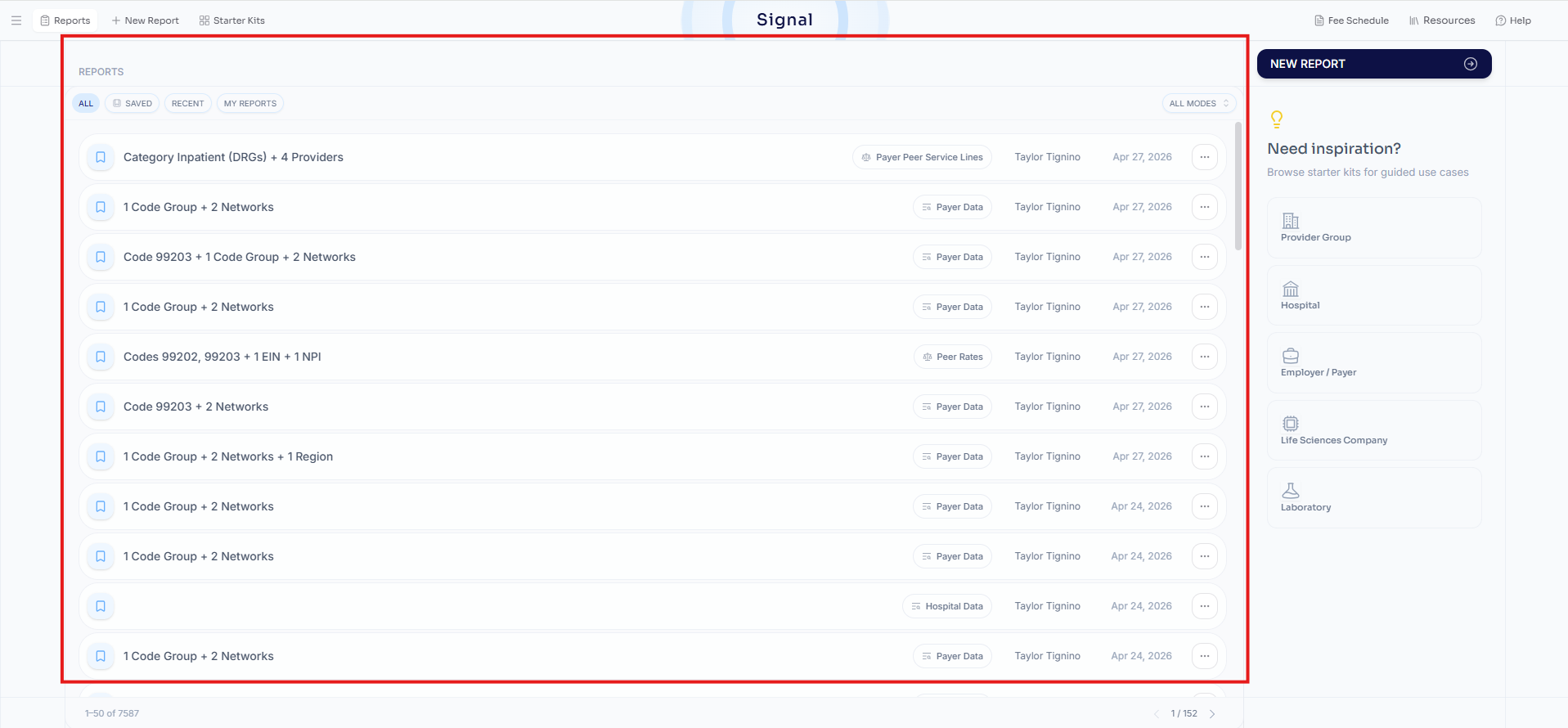
To begin a new search, you have two options:
Use one of our starter kits, tailored to common analytical use cases (covered in depth in following section)
Start from scratch with a fully customizable query
If you choose to start from scratch, there’s no need to pre-select a mode. Simply click “New Report” and begin applying your desired search parameters by either following the embedded instructions under “Generic Search” or using the five primary filters located on the left-hand side of the interface.
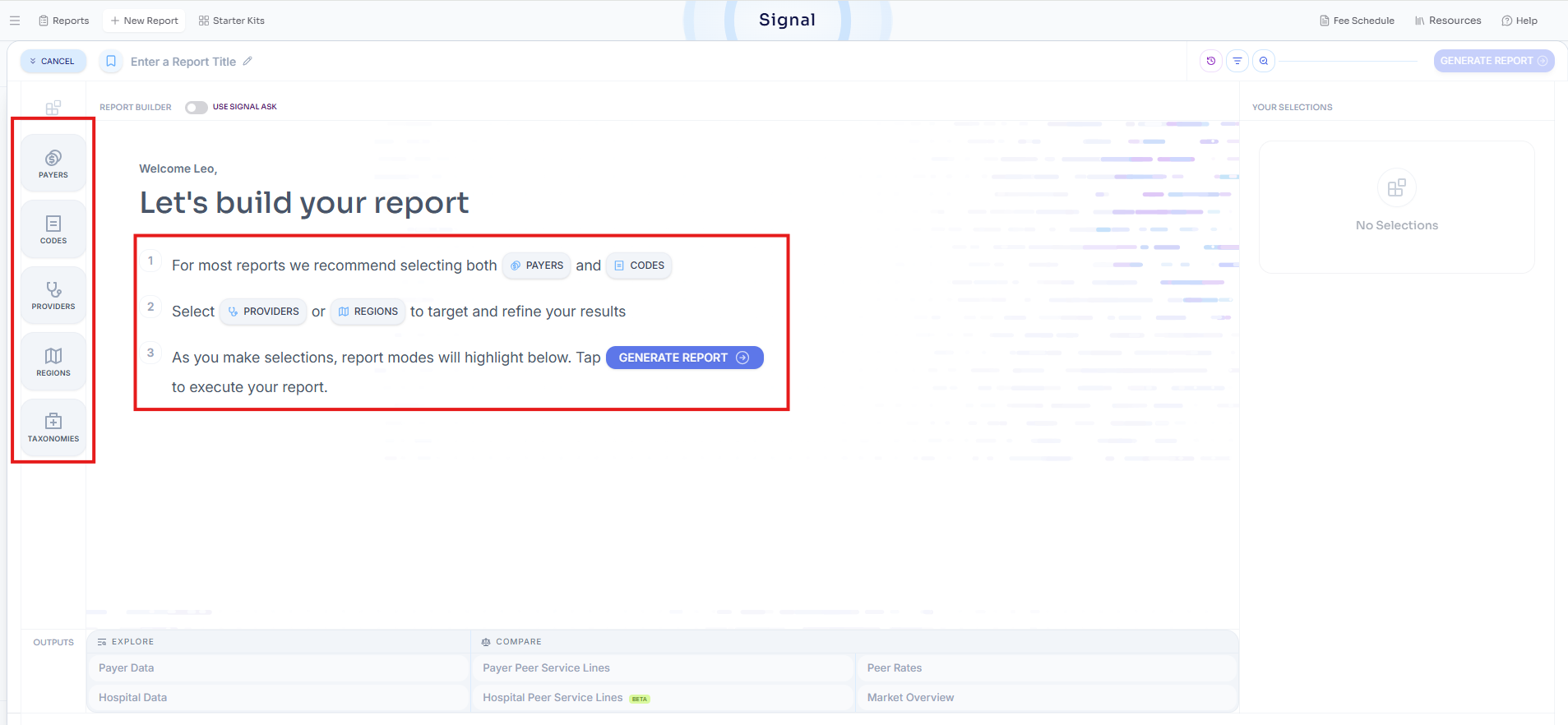
Once a filter is applied, it will appear on the right-hand side of the screen under “Your Selections.”
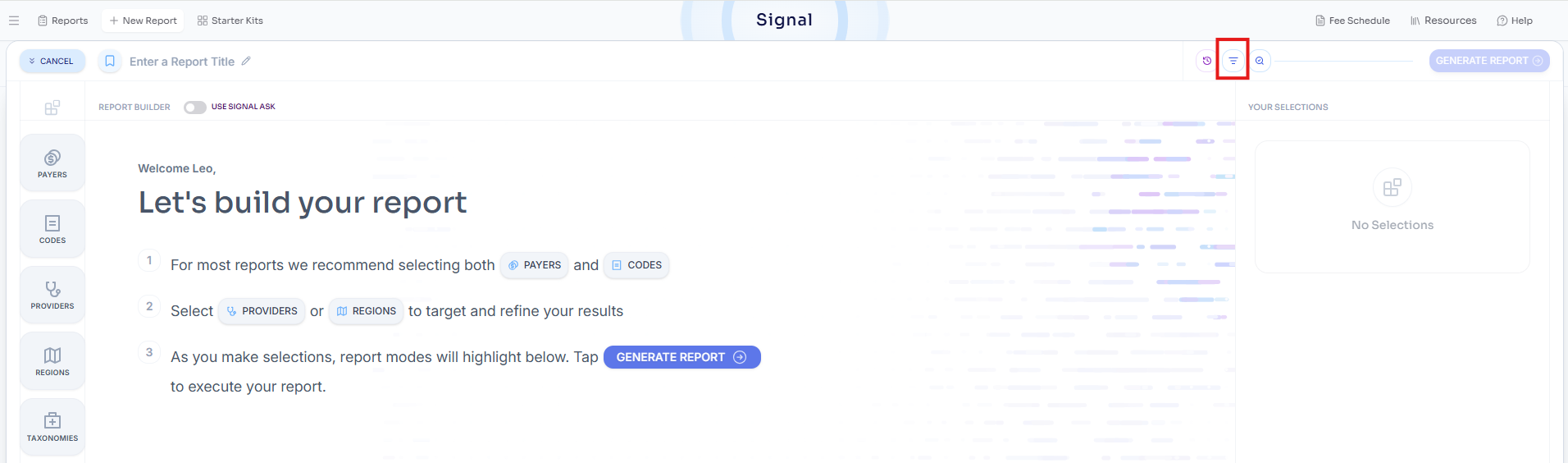
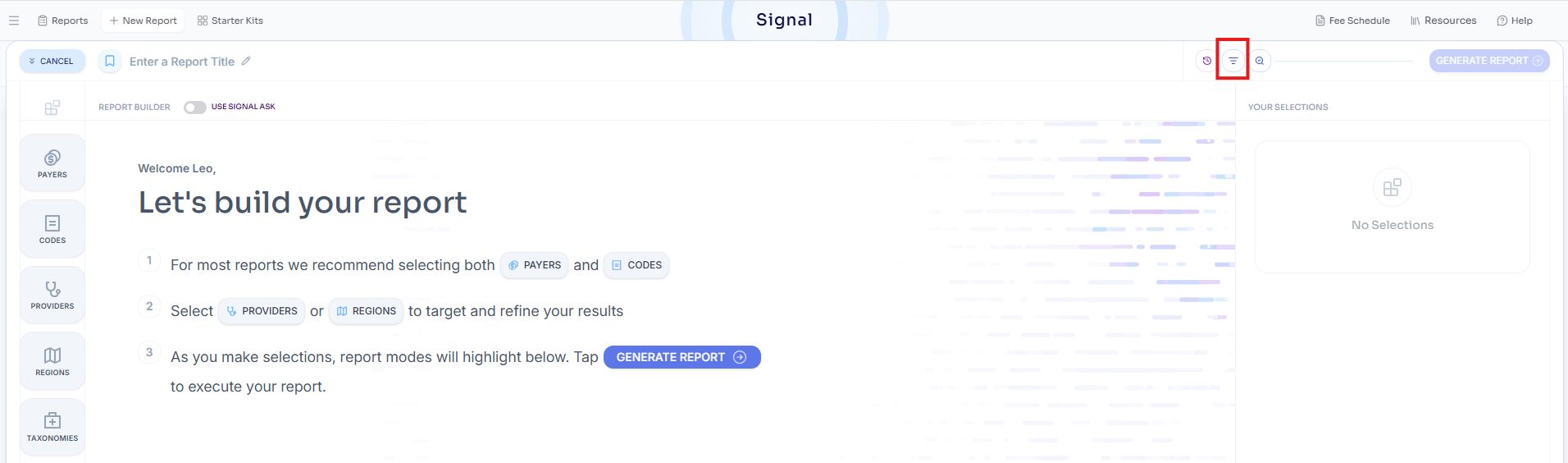
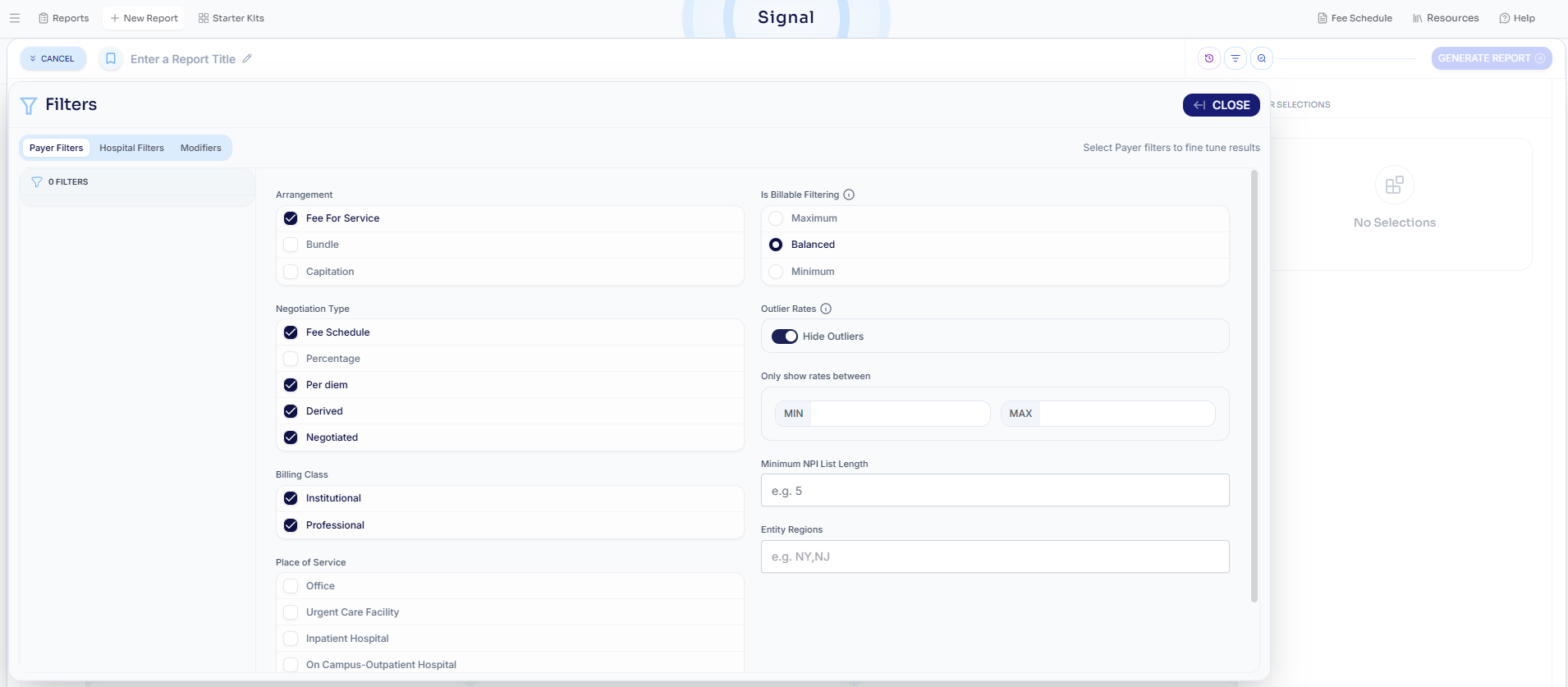
Beyond the primary filters, other advanced filtering options are available by clicking the filter icon (boxed in red). This is where you can refine your search further with:
Payer filters (e.g., billing class, arrangement, negotiation type, place of service)
Hospital filters (e.g., inpatient vs. outpatient settings)
Modifier filters
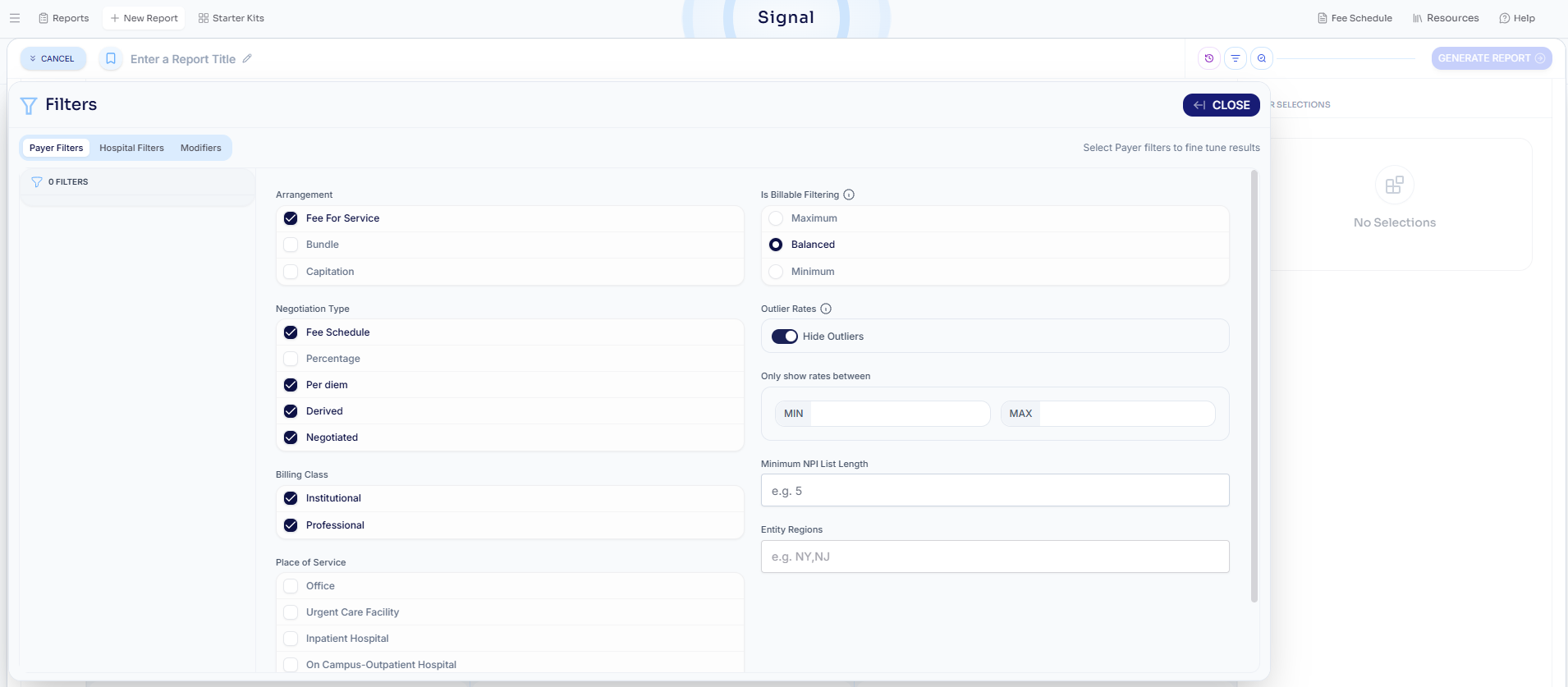
As you build your query, Signal automatically determines the most appropriate mode based on your selected parameters using the following logic:
If you input a payer and code(s), Signal will route you to “Explore - Payer Data” mode
If you input a payer, code(s), and more than one provider, Signal will route you to “Compare - Peer Rates” mode
If you input a hospital only, Signal will route you to “Explore - Hospital Data” mode
If you input a payer, hospital, and service category, Signal will route you to “Compare - Hospital Peer Service Lines” mode
If you input a payer, provider, and service category, Signal will route you to “Compare - Payer Peer Service Lines” mode
If you input a code only, Signal will route you to “Compare - Market Overview” mode
Once you’ve finalized your search parameters, click “Generate Report” to view your results. The bottom mode bar will indicate which mode Signal has selected based on your inputs, giving you full visibility into how your query is being processed.
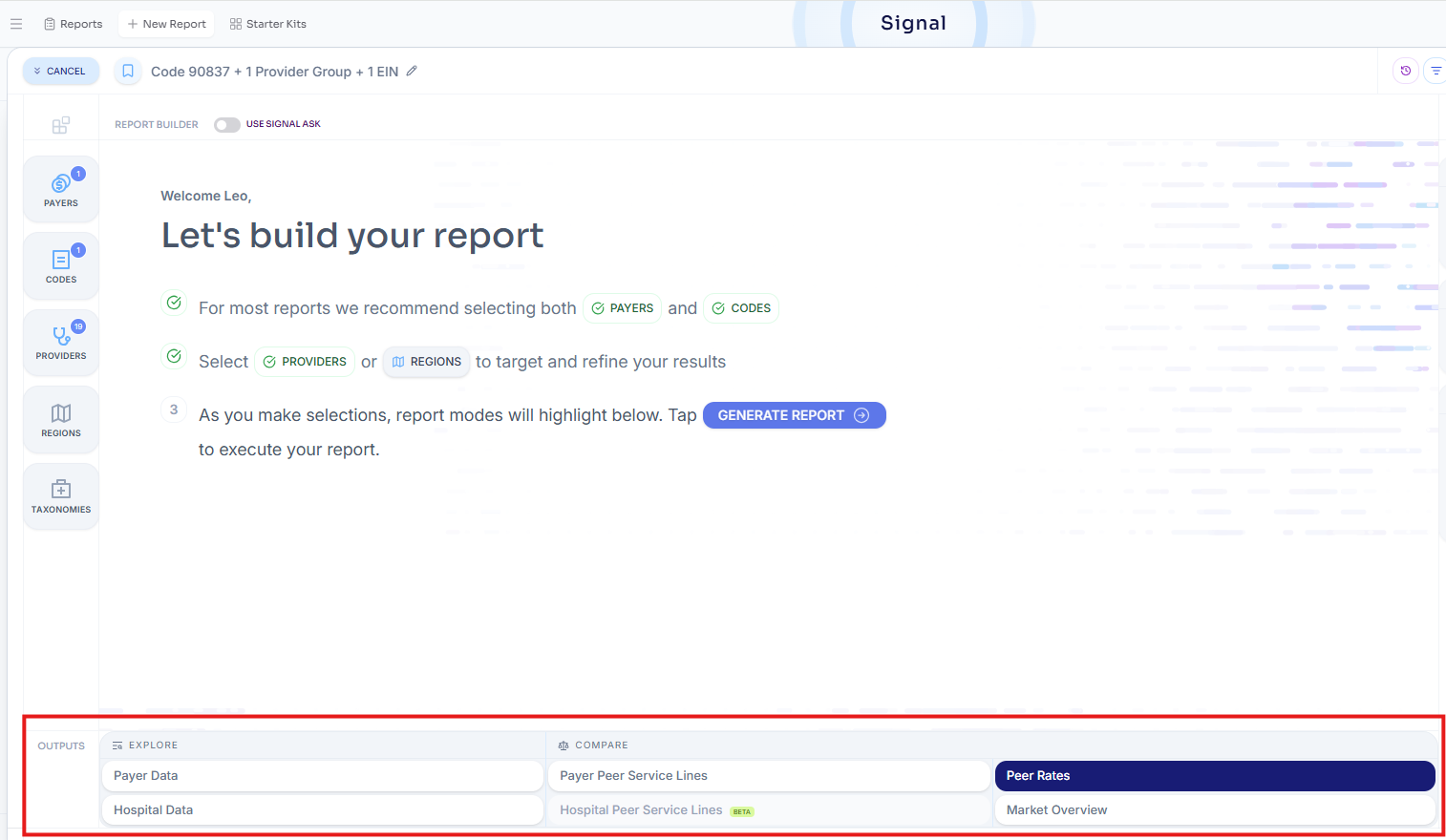
To adjust your filtering after viewing your search output, simply click on the “Build” button located in the upper left-hand corner of Signal to return to the original filtering interface.

Switching Between Modes Easier Than Ever
Switching between modes in Signal is now seamless and intuitive.
For example, after running a search, you may land in “Explore - Payer Data” mode. From there, you might want to take your analysis a step further and compare those rates against competitors. This can now be done instantly – no need to start over.
Simply use the mode dropdown to switch views and select “Compare - Peer Rates” mode.
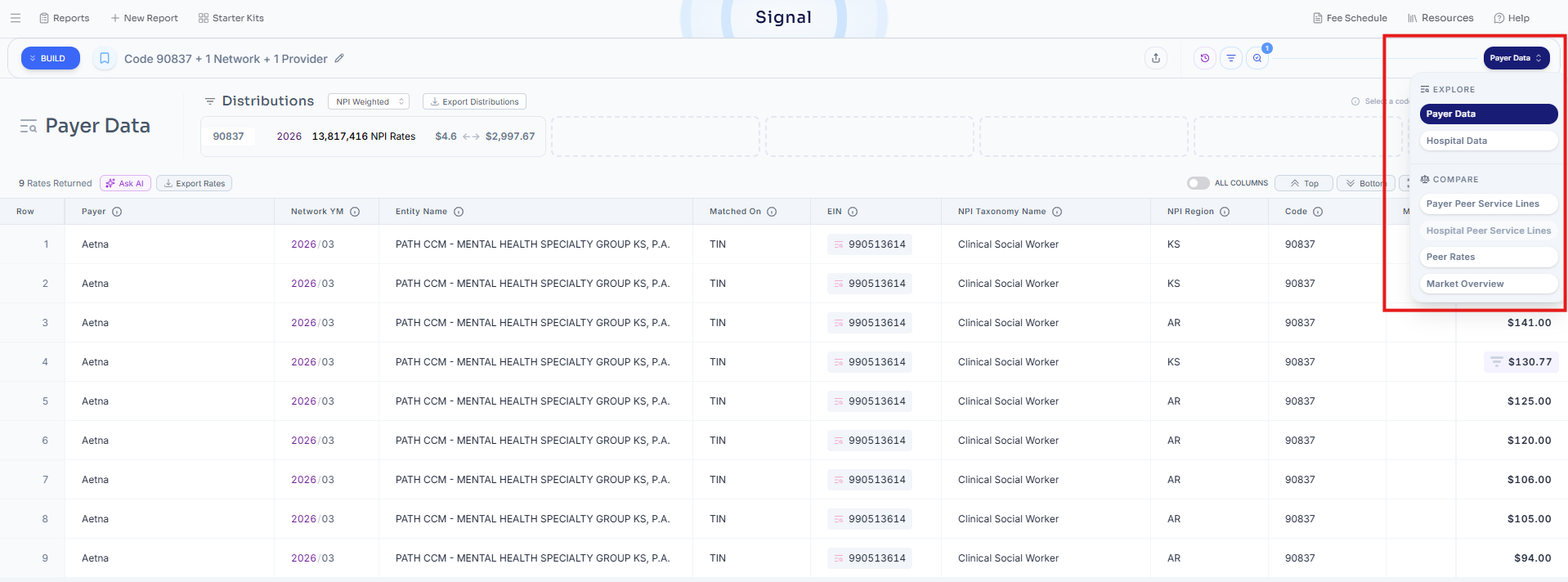
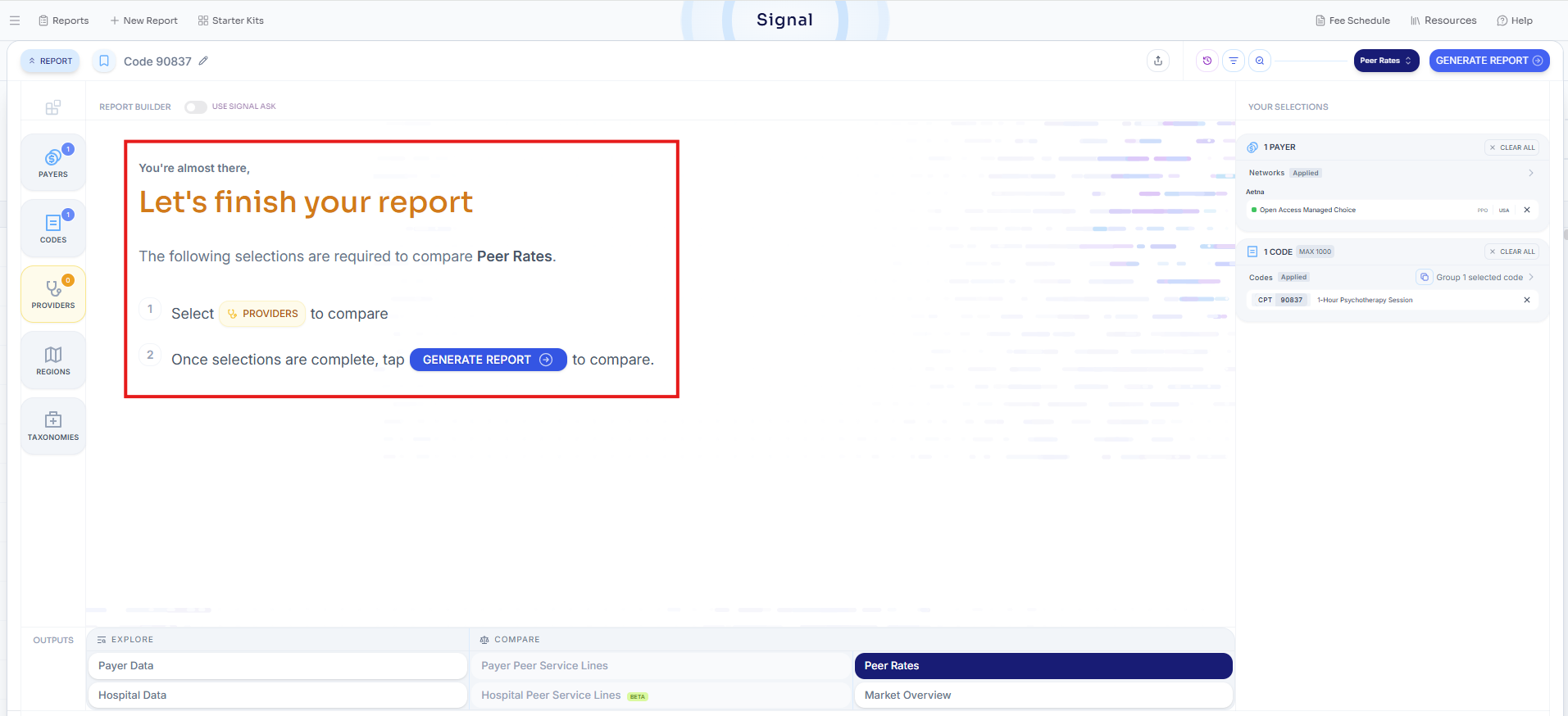
When switching modes, Signal retains all of your previously applied filters. You’ll only be prompted to input any additional parameters required for the new view – in this case, selecting the providers you want to compare.
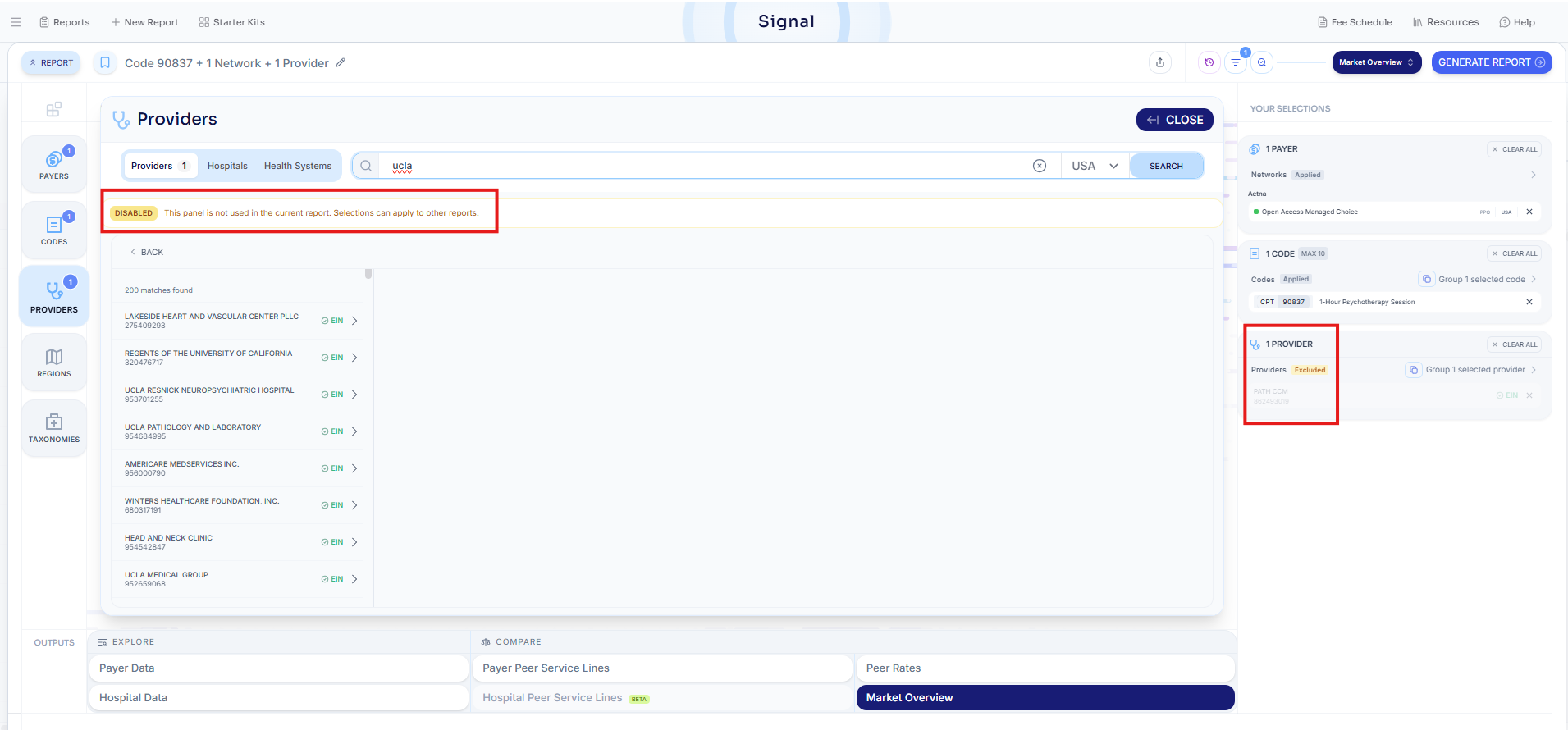
If you switch between modes and a previously applied filter is not applicable (e.g., moving from Peer Rates mode to Market Overview where the provider filter is not used), that filter will be automatically excluded from your search. Excluded filters are clearly marked with a yellow “Excluded” tag in your filter selection panel.
This is just one example of how you can move fluidly between modes without losing your work. Whether you’re analyzing payer price transparency data, benchmarking against peers, or exploring another view, you can toggle between modes at any point, without needing to rebuild your search.
Not Sure Where to Start? Check out our Starter Kits
Rate searching can be complex, so we’ve made it easier. With our Signal update, we’ve introduced a library of starter kits designed to help users quickly and confidently begin their analysis.
You can access starter kits directly from the upper left-hand corner of Signal (boxed in red).
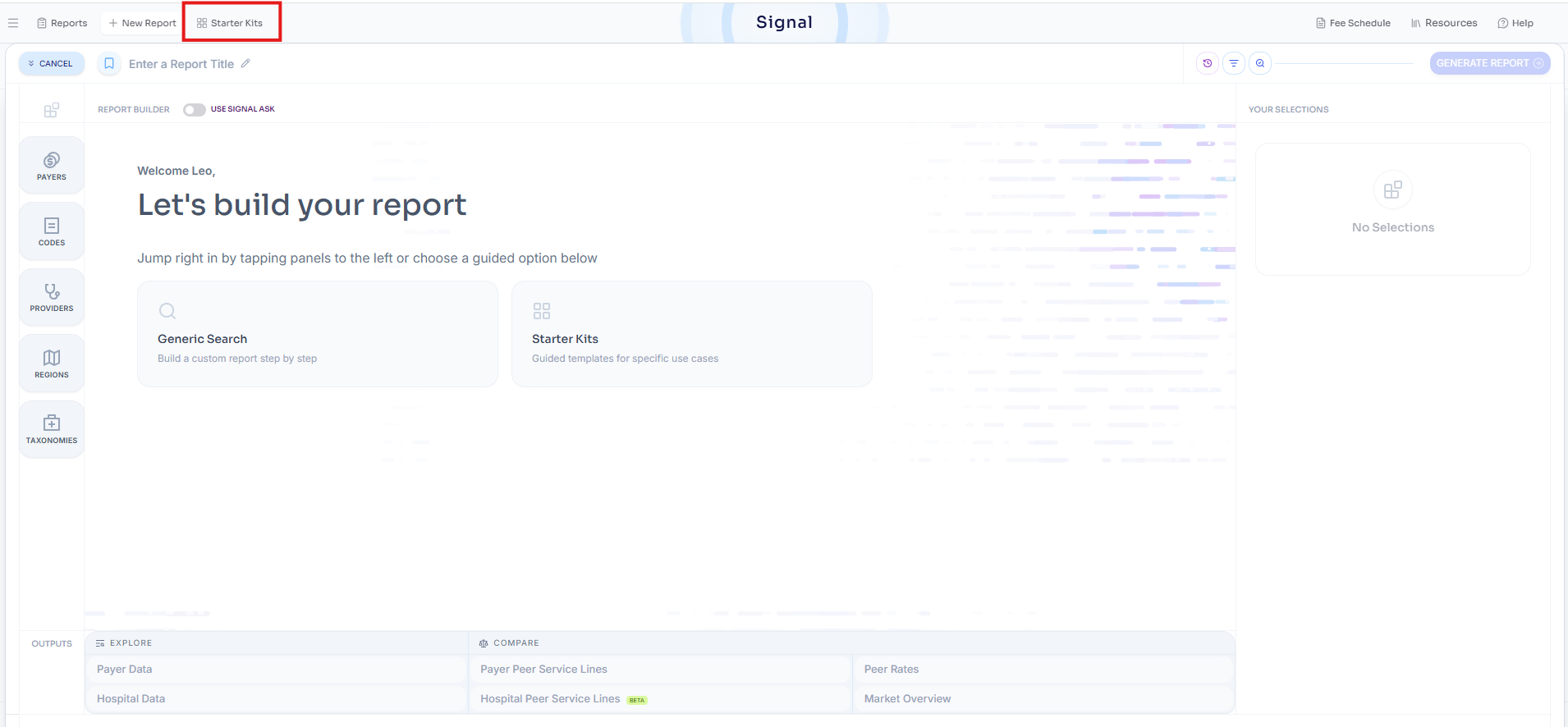
Our starter kits are tailored to a wide range of users and use cases. Whether you’re a provider group, hospital, employer, life sciences company, or laboratory, you’ll find curated starting points aligned to your specific analytical goals.
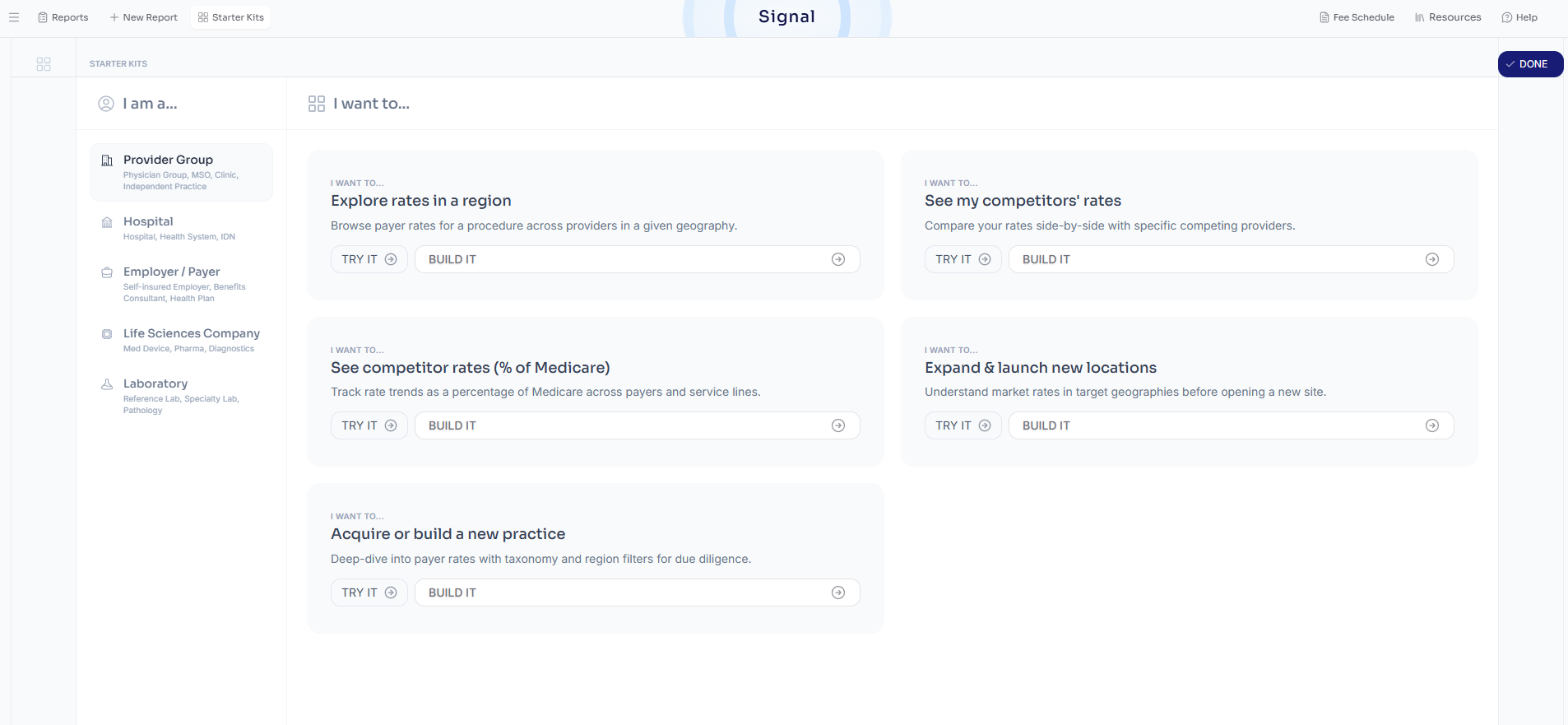
Each starter kit offers two ways to get started:
“Try it”: Explore a fully built example search to see how a use case comes together
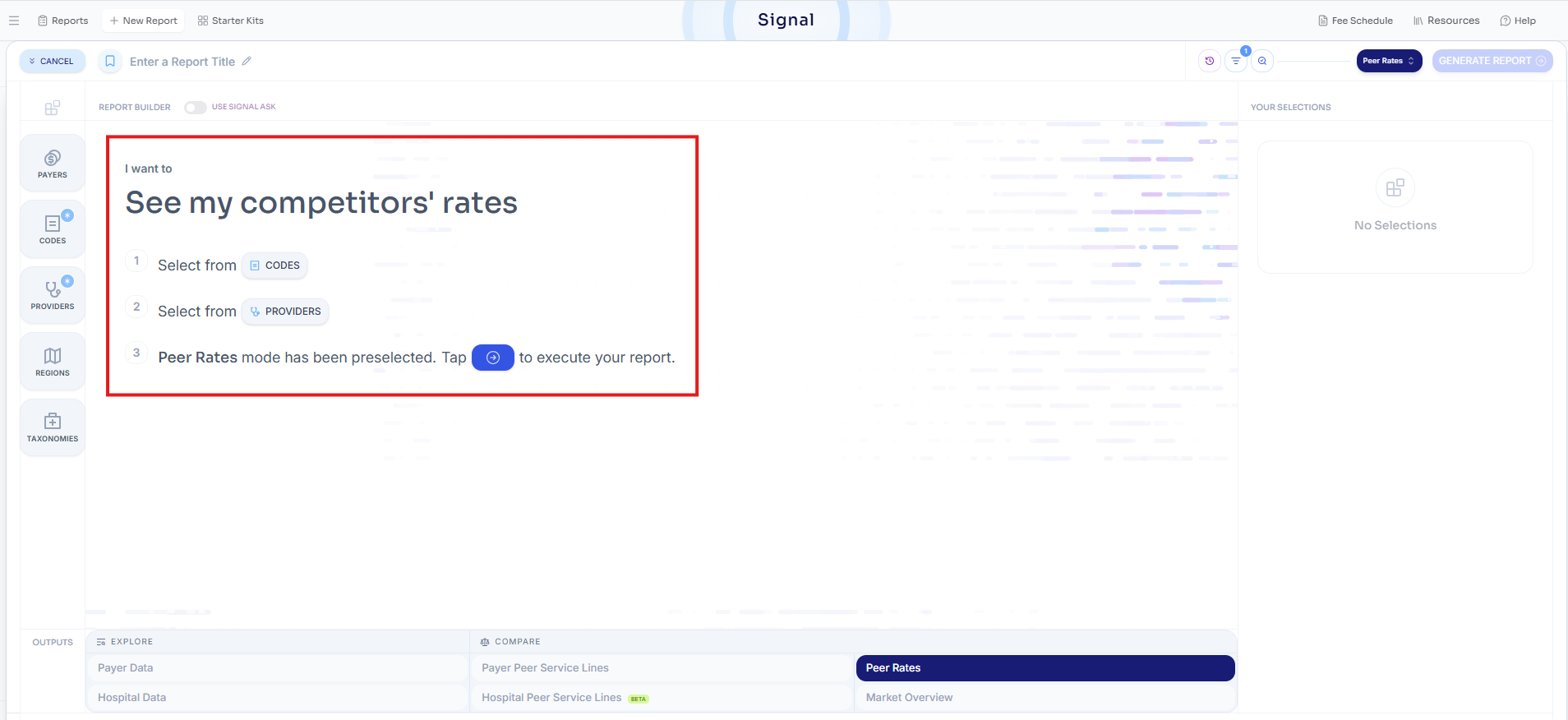
“Build it”: Launch a guided workflow that walks you through creating your own search step by step
When selecting “Build it,” you’ll be taken to the filtering panel with embedded instructions to help you complete your query.
Saved Searches, Reimagined
Saved searches are now more functional, organized, and flexible than ever. Based on user feedback, we’ve redesigned the saved search experience to make it easier to find, manage, and build on past analyses. All saved and recent searches are now accessible through the “Reports” button.
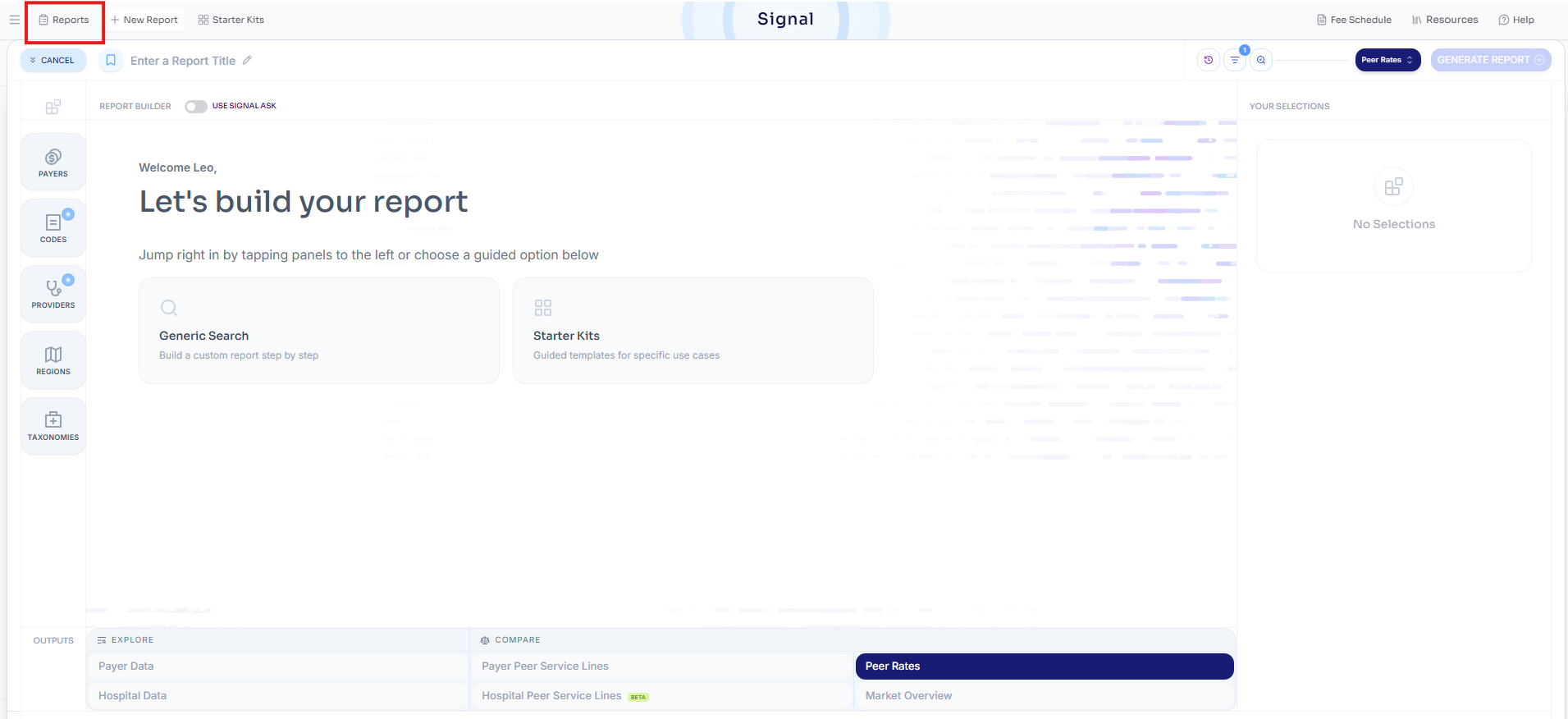
Your Reports provide a centralized view of your work. Within Reports, you can navigate across four views:
All: Every saved and recent (unsaved) search across your company Signal account
Saved: All saved searches across your company Signal account
Recent: All recent (unsaved) searches across your company Signal account
My Reports: Your personal saved and recent searches
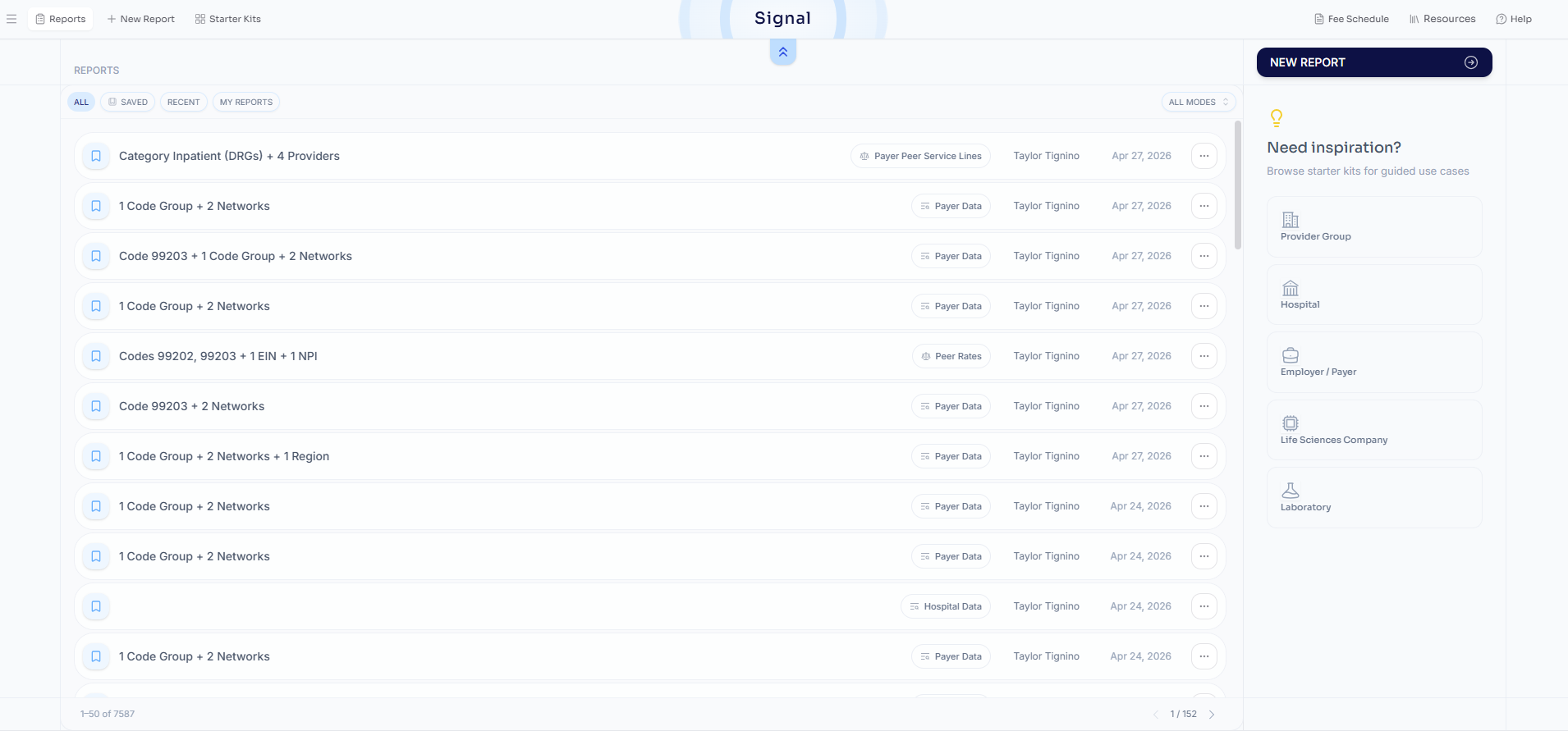
To make it easier to identify and revisit past work, all searches now include key metadata:
Original creator of the search
Creation date
Mode associated with the search

Saved searches now support a range of new capabilities:
Update existing saved searches with modifications (no need to create a new one)
Create new saved searches based on existing ones, with or without changes
Duplicate searches to use as templates for future analyses

Additional Feature Changes
In addition to the major changes introduced to Signal, we’ve made several smaller enhancements to improve usability and streamline your workflow.
Filtering Panel Decoupled from Output View
To update your search parameters, simply click the “Build” button located in the upper left-hand corner of Signal. As part of this update, we’ve removed the filters previously displayed at the bottom of the output screen to create more space for your results and improve overall readability.

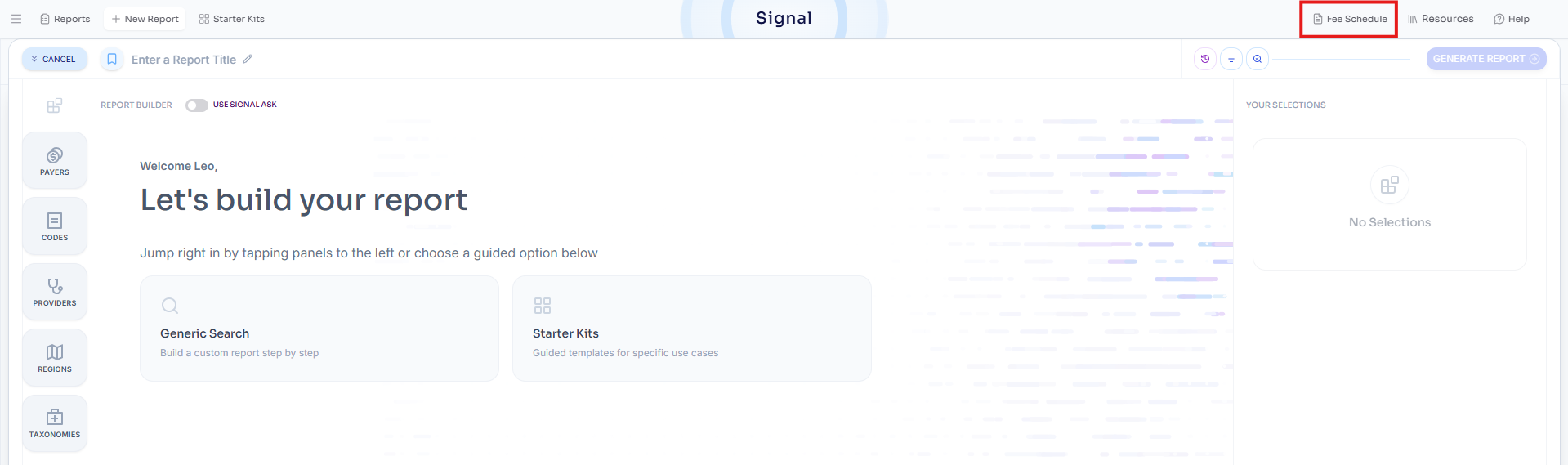
Dedicated Fee Schedule Access
Accessing fee schedules is now more straightforward. A dedicated “Fee Schedule” button is available, so you no longer need to navigate through the provider panel to find this information.
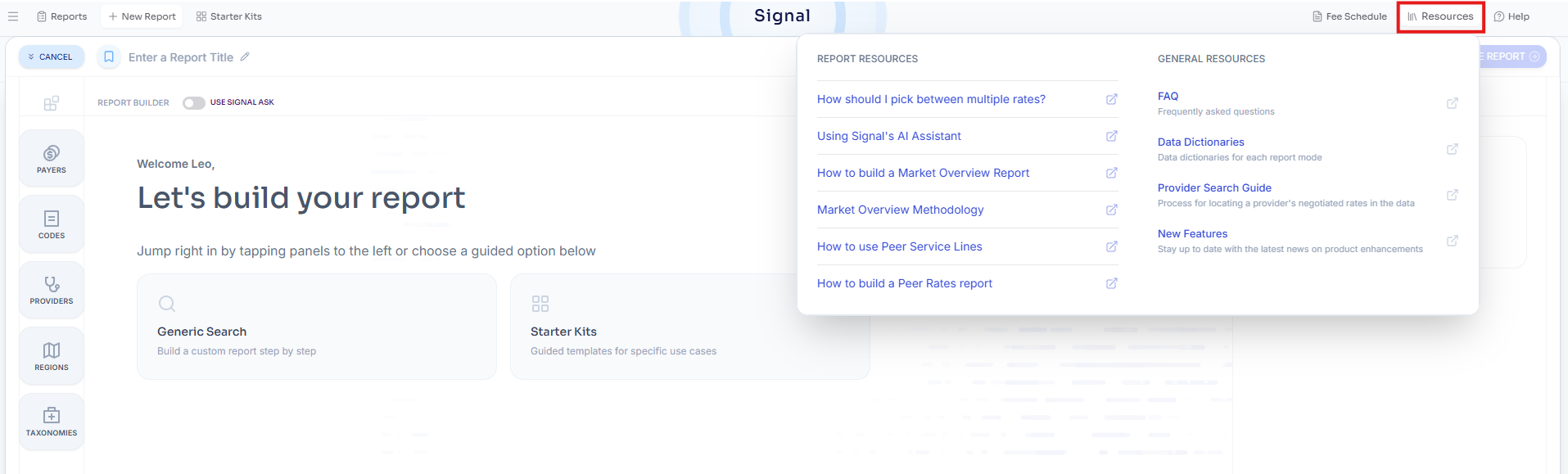
Faster Access to Help Resources
We’ve made it easier to find answers when you need them. Our FAQ articles are now directly linked under “Resources,” allowing you to quickly access guidance and get back to your search.
Consolidated advanced filters
All advanced filtering options are now centralized in one place and can be accessed via the filter icon. This design reduces unnecessary decision-making by minimizing the number of non-essential filters presented upfront. Advanced filters include:
Payer filters (e.g., billing class, arrangement, negotiation type, place of service)
Hospital filters (e.g., inpatient vs. outpatient settings)
Modifier filters
What to Expect Next
This is just the beginning. We’ll be actively incorporating your feedback to refine the Signal experience. We’re also working on expanding our FAQ resources to provide more comprehensive guidance as you navigate Signal and explore its new capabilities.
Coming soon, we’re introducing a Signal-integrated AI agent designed to act as your copilot, helping you build smarter queries, interpret complex rate data, troubleshoot searches, and dive deeper into price transparency topics.
We’re in the final stages of development and look forward to making Signal even more intuitive and powerful!
Healthcare is complex. Getting answers shouldn’t be.