Save, Restore, and Share Searches
Last updated: July 9, 2026
We have some useful features in Signal to help reduce click fatigue, streamline search, and share insights with your team.
Save searches
When creating or viewing a search, you can save it for future reference by entering a report name and clicking “Save Report” at the top of the page.

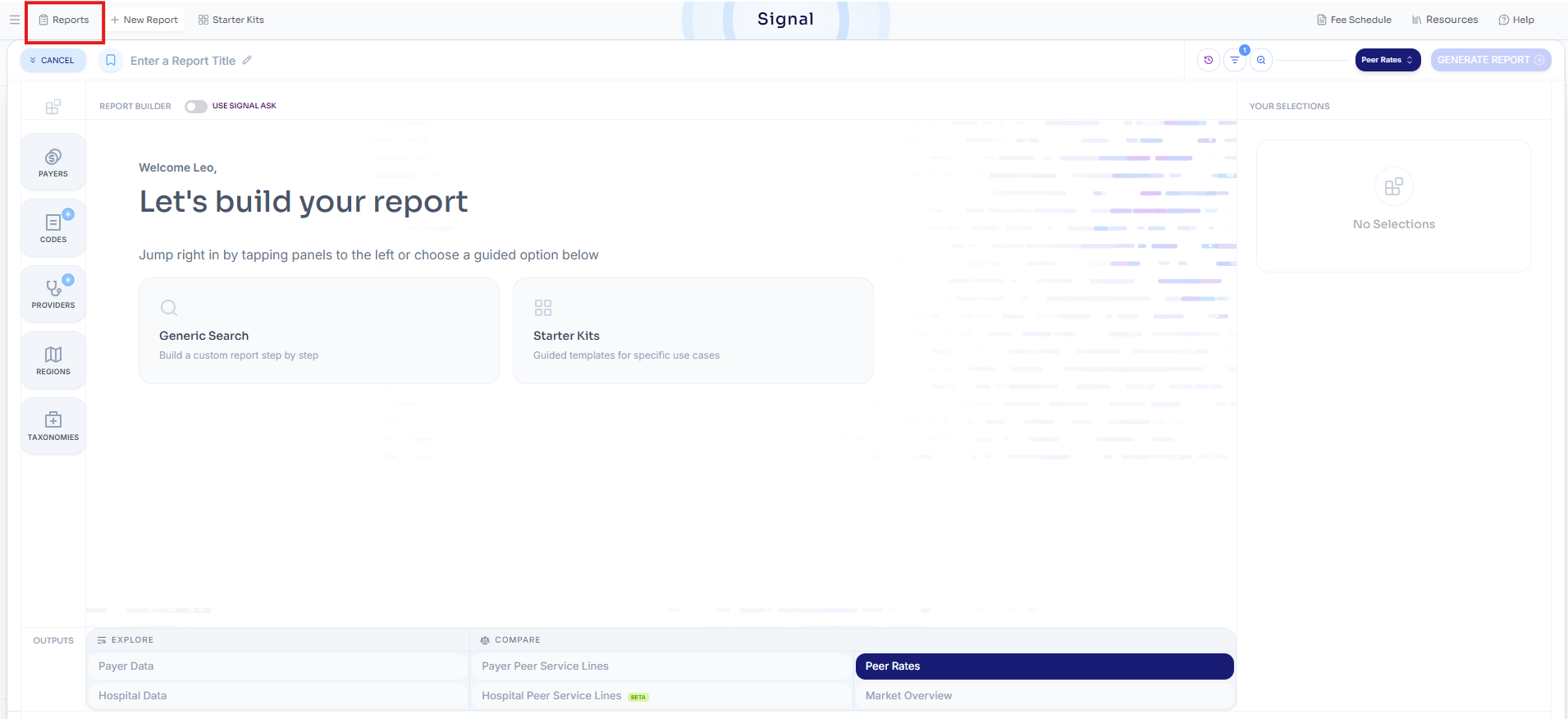
The saved search will then show up in your Reports dashboard, which you can access via the "Reports" button in the upper left hand corner.
Your Reports dashboard provides a centralized view of your work. Within Reports, you can navigate across four views:
All: Every saved and recent (unsaved) search across your company Signal account
Saved: All saved searches across your company Signal account
Recent: All recent (unsaved) searches across your company Signal account
My Reports: Your personal saved and recent searches
Saved searches also support a range of new capabilities:
Update existing saved searches with modifications (no need to create a new one)
Create new saved searches based on existing ones, with or without changes
Duplicate searches to use as templates for future analyses

Other notes to keep in mind for restoring past searches:
Restoring a search always receives the most recently available data. For example, if you ran a search on Feb 28 but restored it on March 2, you would see the March data not the February data.
For restoring searches that contained specific providers, the UI will populate the list of NPIs and EINs used to query the data. For more information on how to crosswalk between NPIs>provider-names>EINs, please read our provider search guide.
Share searches
Every time you click "Generate Report", you will see the URL in Signal update to reflect your unique search. If you would like to share searches with others on your team or the Serif support team to help you trouble shoot any issues, simply copy the URL directly or click the "Share" button located top of page.
