Signal Watch
Last updated: September 30, 2026
We're excited to introduce Signal Watch, a rate alert mode designed to notify you whenever a competitor experiences a rate change! It is currently available in Payer Peer Service Lines and Peer Rates mode, with more report types coming soon!
HERE is a video tutorial on how Signal Watch works!
Setting up a Signal Watch
You can initiate a Signal Watch in 3 ways:
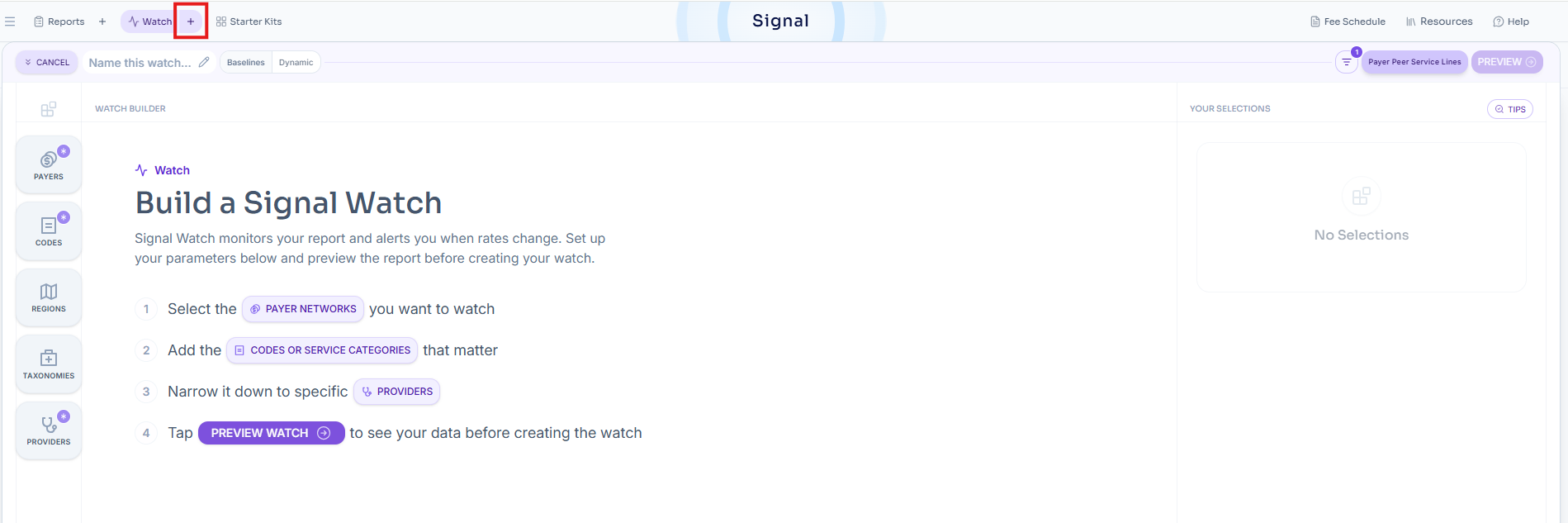
Click the "+" button next to "Watch" in the top navigation bar. This will take you directly to the Signal Watch configuration panel, where you can build a "Watch" report by following the embedded instructions
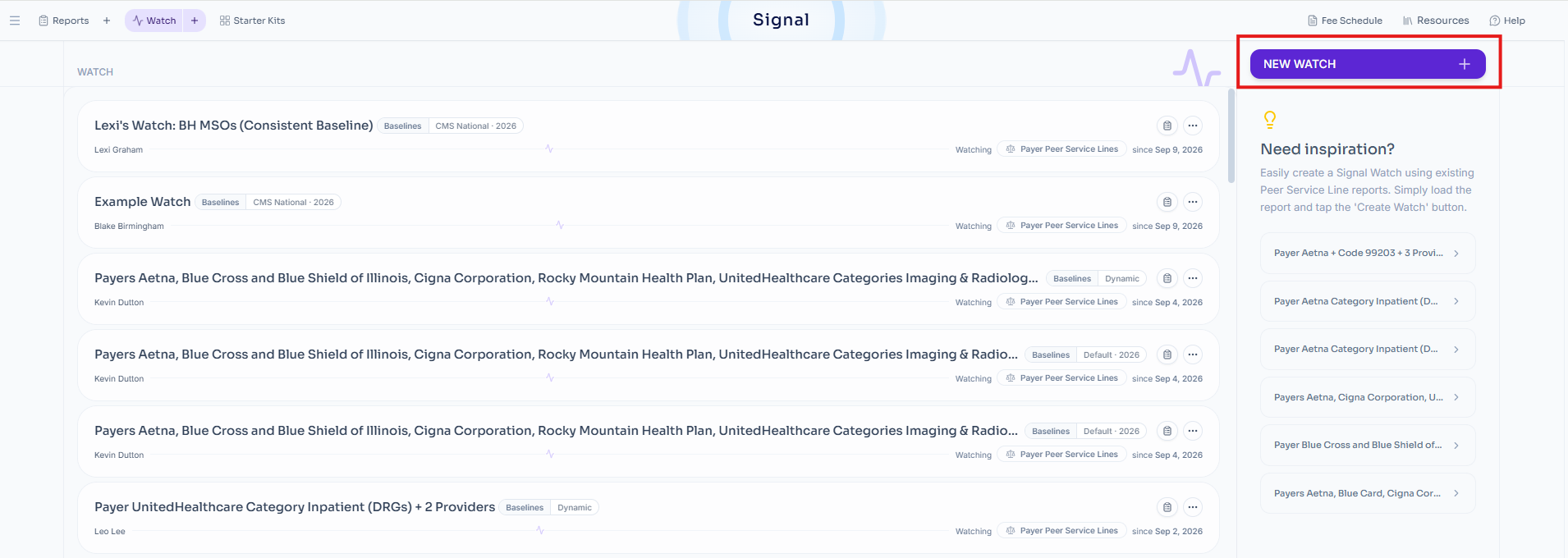
Go to your Signal Watch dashboard by clicking on "Watch" in the top navigation bar and selecting "New Watch," which will bring you to the Signal Watch configuration panel with some embedded instructions
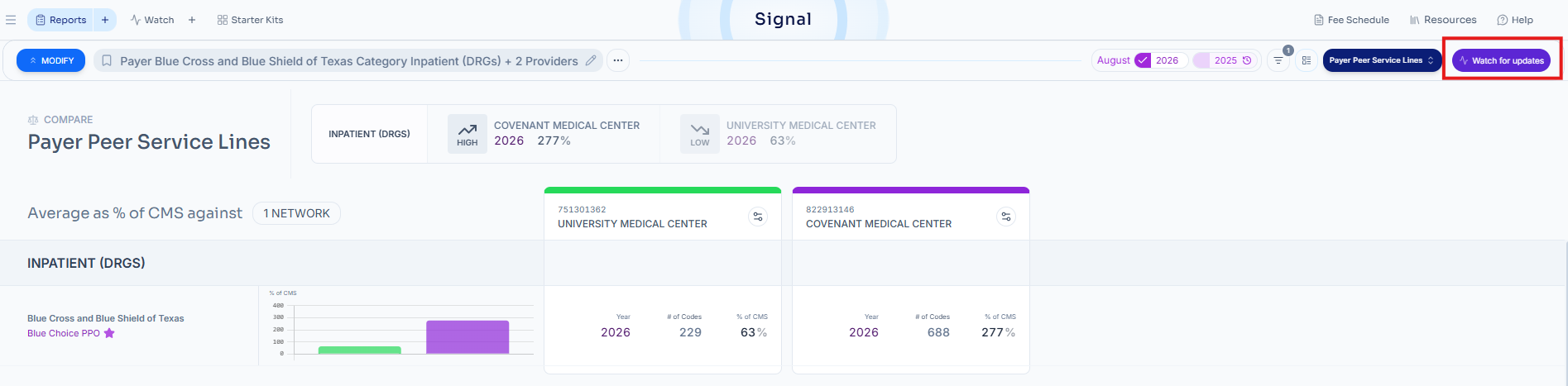
Build out a Payer Peer Service Lines report and then click "Watch for updates"
Once you've constructed a Signal Watch report, you'll be brought to a "Watch Preview" page where you can finalize it.
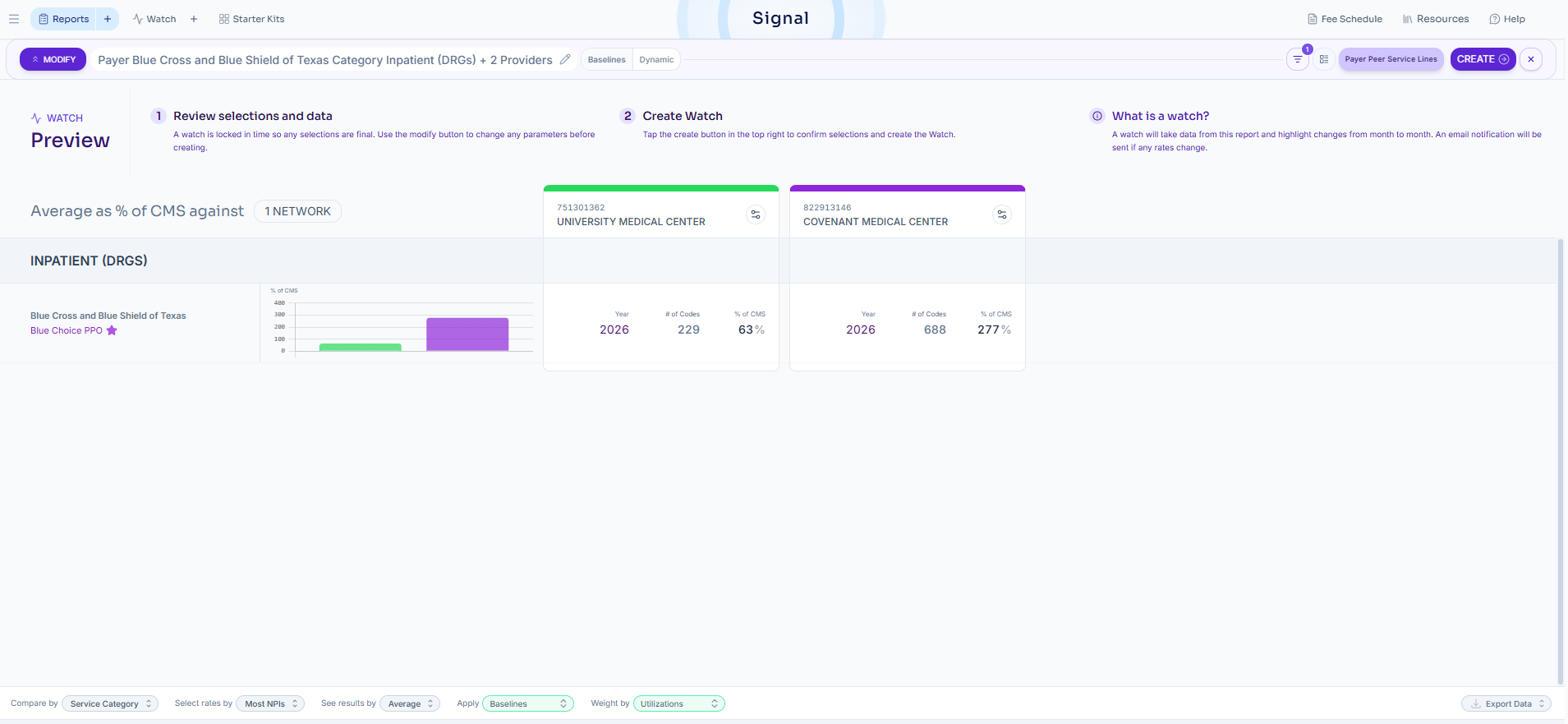
To finalize and create a Signal Watch report, click "Create" in the upper right corner and confirm your desired baseline behavior.
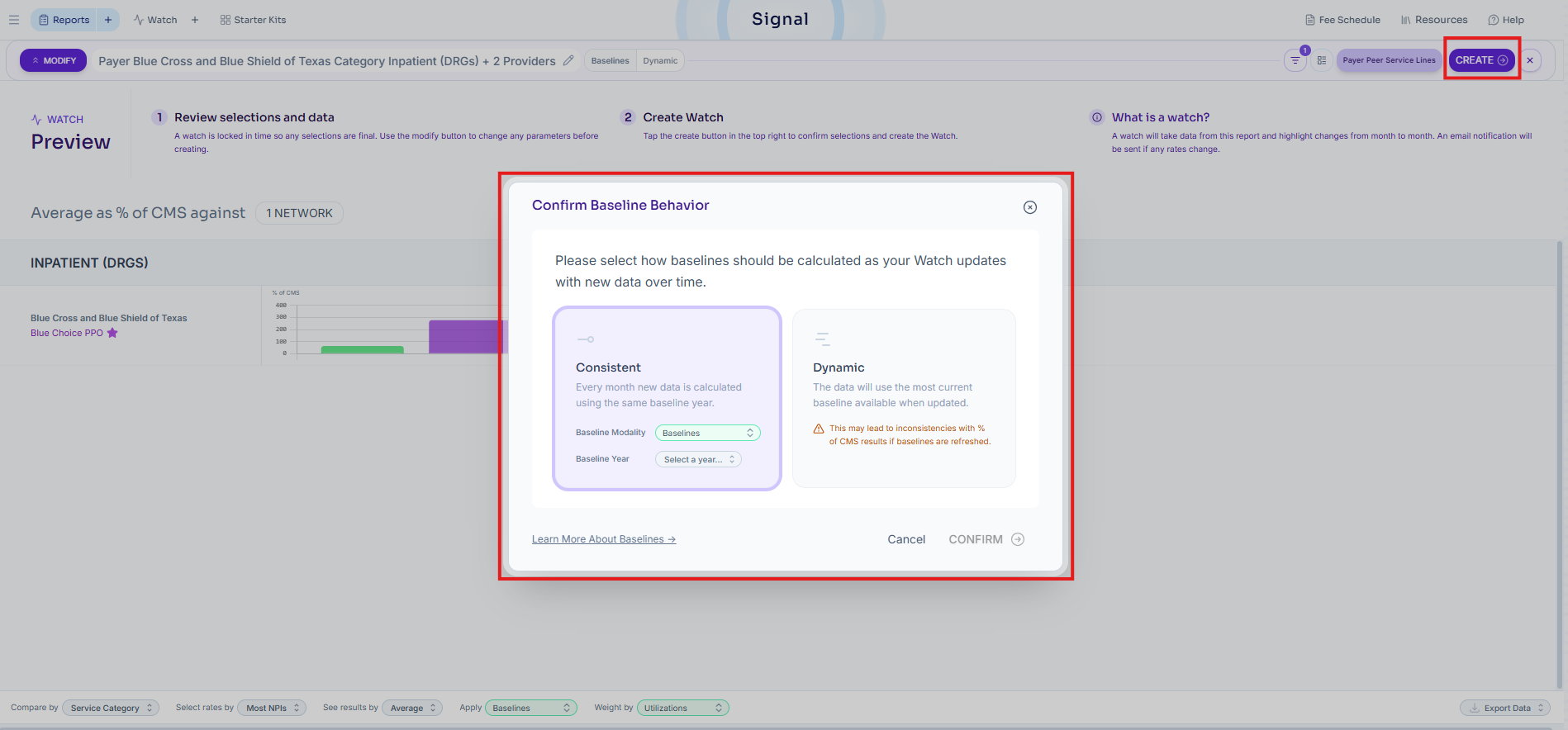
Selecting a baseline
There are two types of baseline to select within Signal Watch:
Consistent: New monthly rate data is benchmarked against a fixed CMS baseline of your choosing
For example: If baseline year 2026 is selected, % of CMS for each available month - incl. 2025 months - would be calculated using a fixed 2026 CMS baseline
Dynamic: New monthly rate data is benchmarked against the latest baseline for that month
For example: The latest 2026 rates will be benchmarked against the latest 2026 CMS baseline, while 2025 rates will be benchmarked against the corresponding 2025 CMS baseline
Important note: If the "dynamic" baseline is selected, % of CMS change month over month may be driven by a rate change, CMS baseline change, or both. Receiving a Signal Watch notification with dynamic baseline selected does not guarantee a rate change.
Once you've selected a baseline and hit "Confirm," the report will load into a Signal Watch, which can take up to a few minutes.
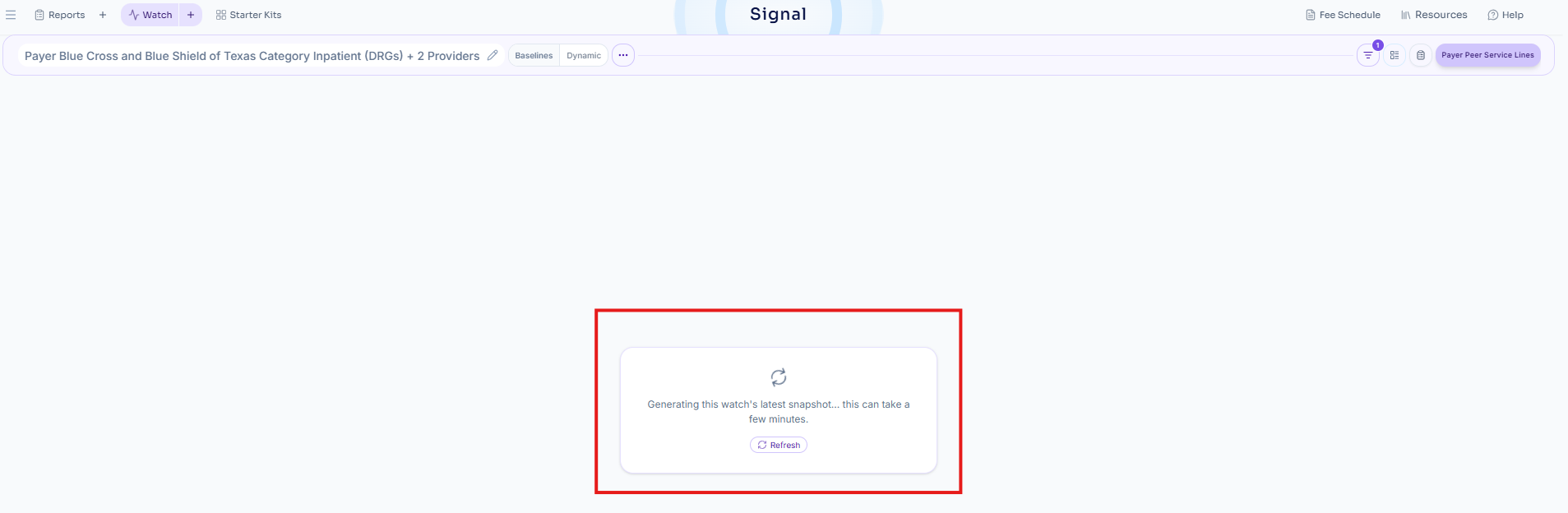
Tip: If the report is still on the loading screen after a few minutes, click refresh to see the final output
Interpretating the output
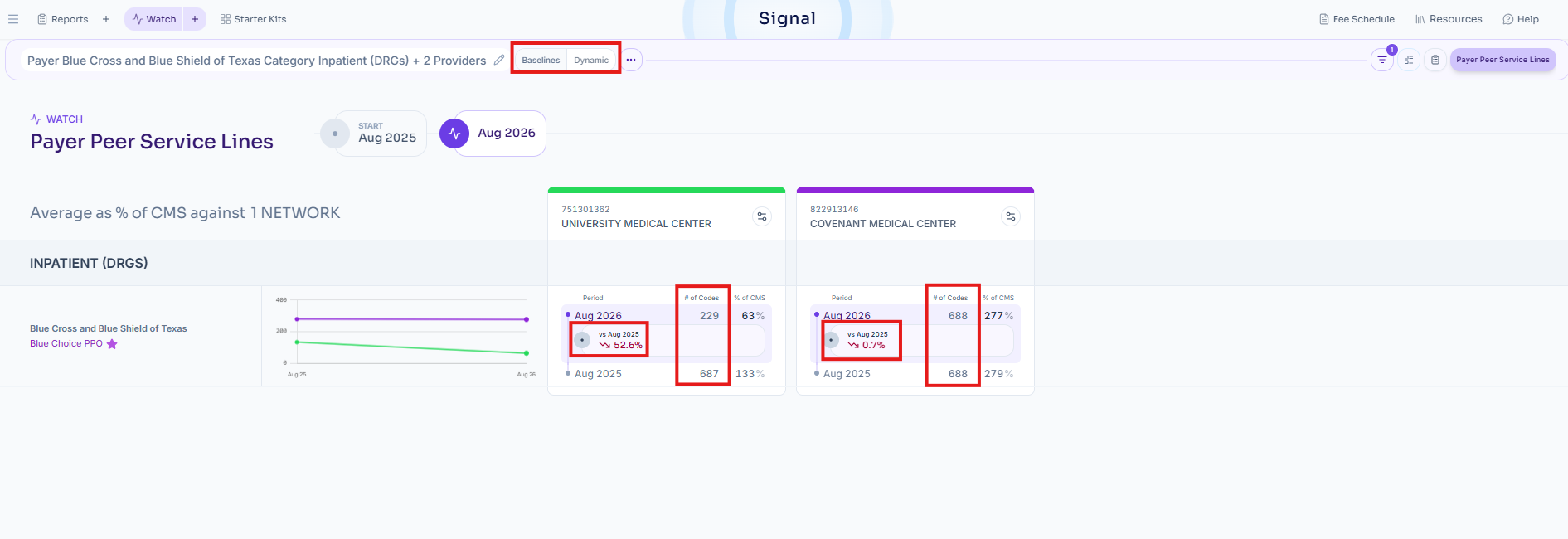
In your Signal Watch report, there are a few important pieces of information (boxed in red):
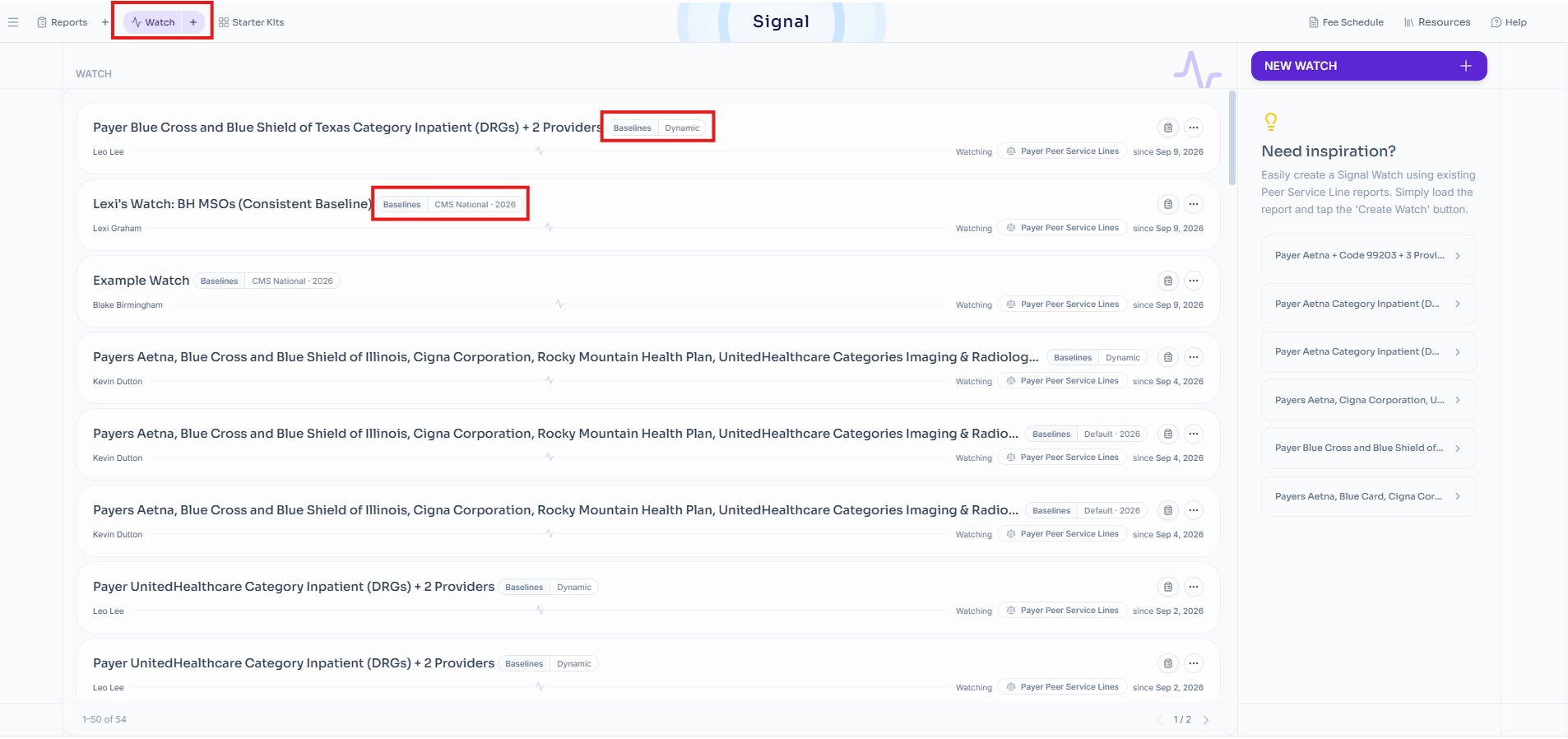
Baseline type: Consistent or dynamic; if dynamic, what baseline was selected
Trend of % of CMS: % change in % of CMS period over period
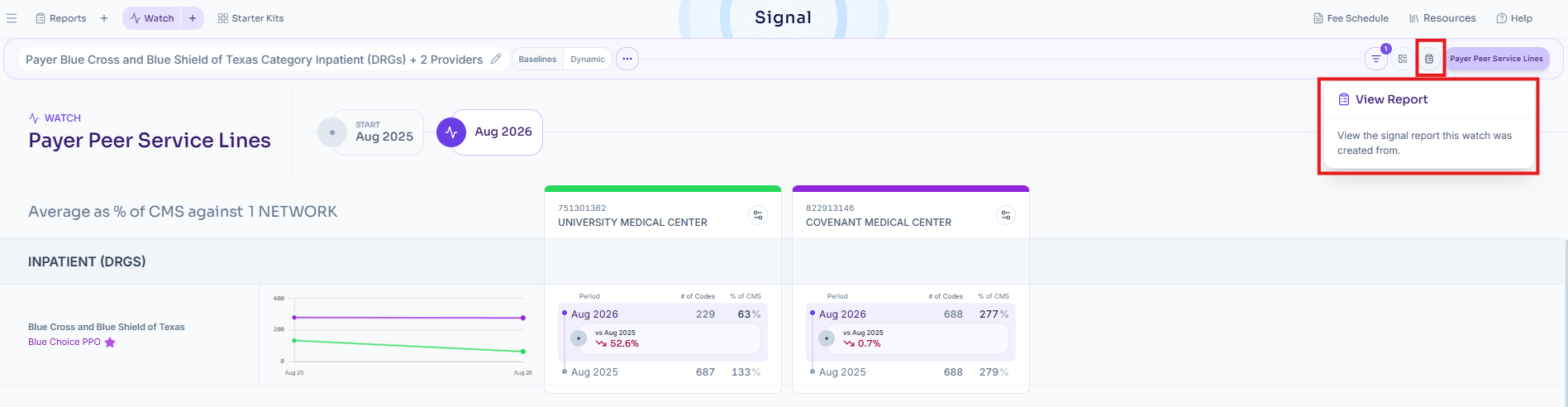
E.g., for UNVERSITY MEDICAL CENTER, Aug 2026 % of CMS (63%) is compared to Aug 2025 % of CMS (133%), which is a ~52.6% decrease.
# of codes: The count of codes used to calculate each provider's % of CMS in each time period
Note: Once a Signal Watch report is created, no further adjustments could be made to it
From here, every time a Signal Watch report experiences a change in % of CMS for any provider group(s), you will receive a notification in your email!
Additional functions
You can view the underlying Payer Peer Service Lines report for each Signal Watch by clicking on the "View Report" button in the upper right corner.
There is a dedicated Signal Watch dashboard that allows you to view all the Signal Watches created across your account, along with their configuration and selected baseline.