Report-Builder: Peer Rates
Last updated: July 9, 2026
The Peer Rates mode allows users to track and compare providers' contracted rates across networks with automatic monthly updates reflecting contract changes and new network appearances.
Building, exporting, and exploring peer rate reports
To enter Peer Rates mode, you can either filter for at least 2 providers in Signal's configuration panel or manually select Peer Rates in the mode selector.
Note: To learn how to find and select providers, we first recommend reading our provider search guide to understand concepts like a provider's EIN, Type-2 NPI, and provider groups.
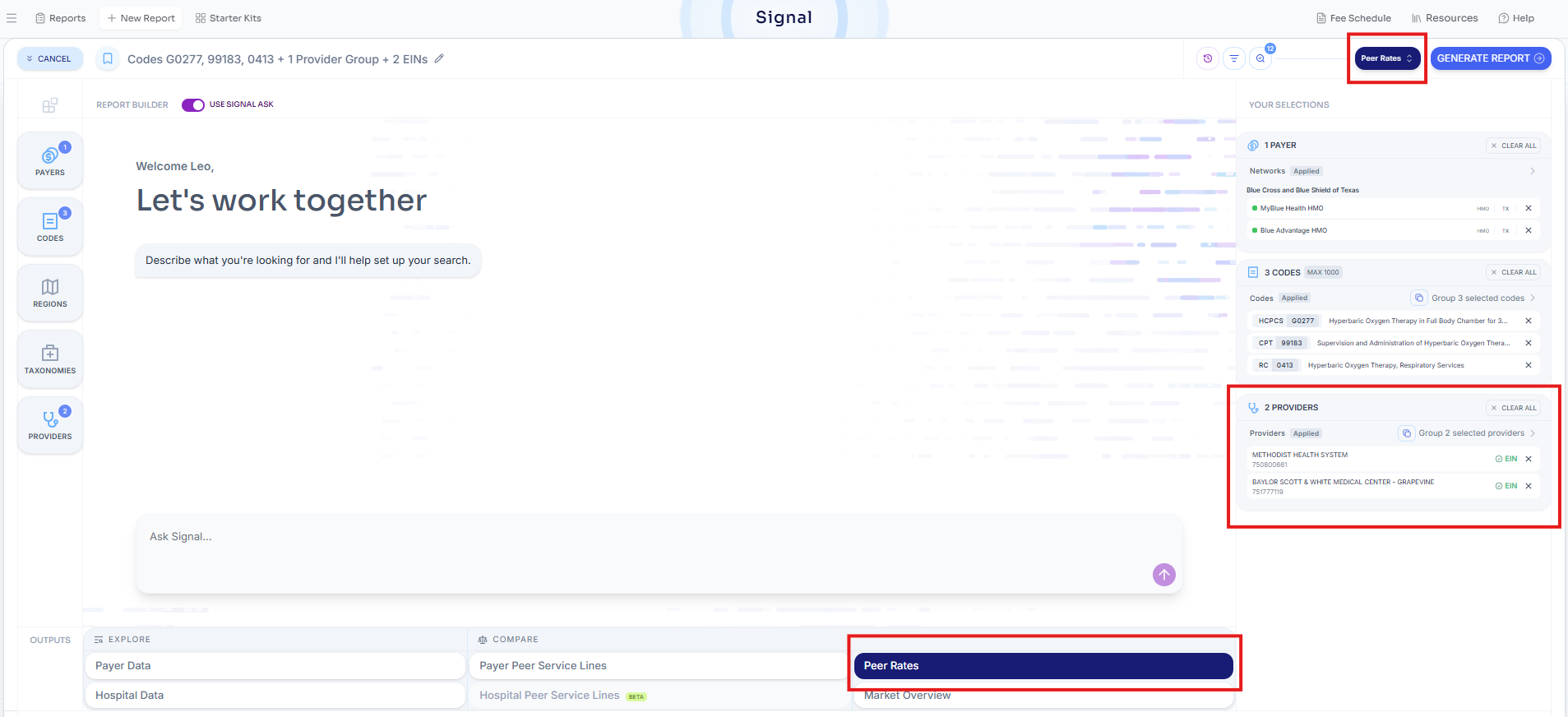
Then, for your given set of selected EINs and codes, peer rates will automatically load in all the rates Serif Health has access to across our entire payer price transparency library:
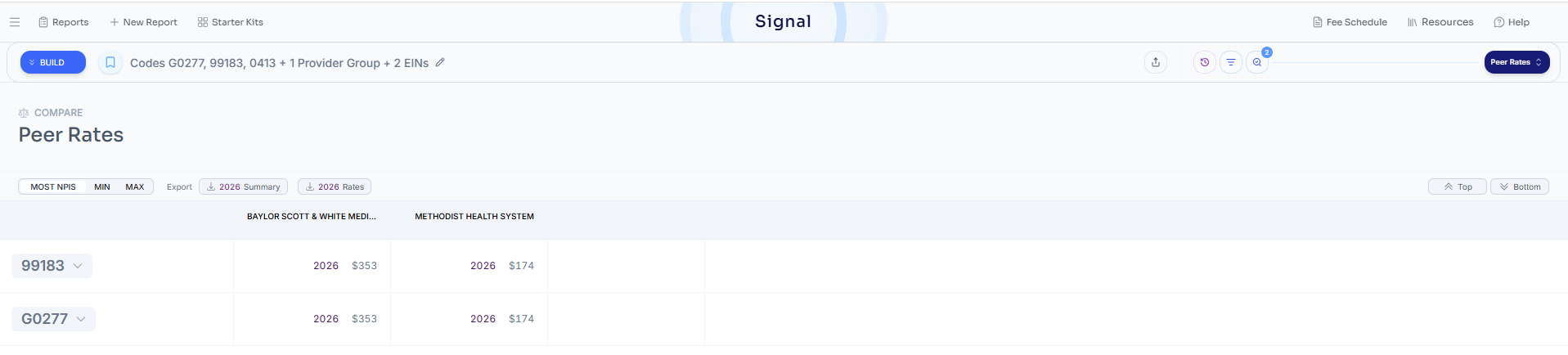
Additionally, for each code and EIN / group, you have the ability to select one of the following options to aggregate the data by:
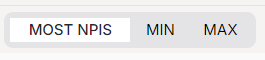
Most NPIs: Recommended by default; output displays the rate associated with the largest NPI_list_length. See 'why' this is our recommended methodology by reviewing our article on "How Should I Pick Between Multiple Rates".
Min: Useful if interested in the floor allowed-amount across all billing scenarios. For example, 'telehealth' / 'facility' place of service for a nurse assistant / other Masters level professional.
Max: Useful if interested in the highest allowed-amount across all billing scenarios. For example, 'office' place of service for a specialized physician.
If any data point piques your interest, you can always dive deeper into any given cell and see the full raw data the payer disclosed. For example, curious about the underlying data for this cell? Just click the magnifying glass icon and see in normal Signal format:
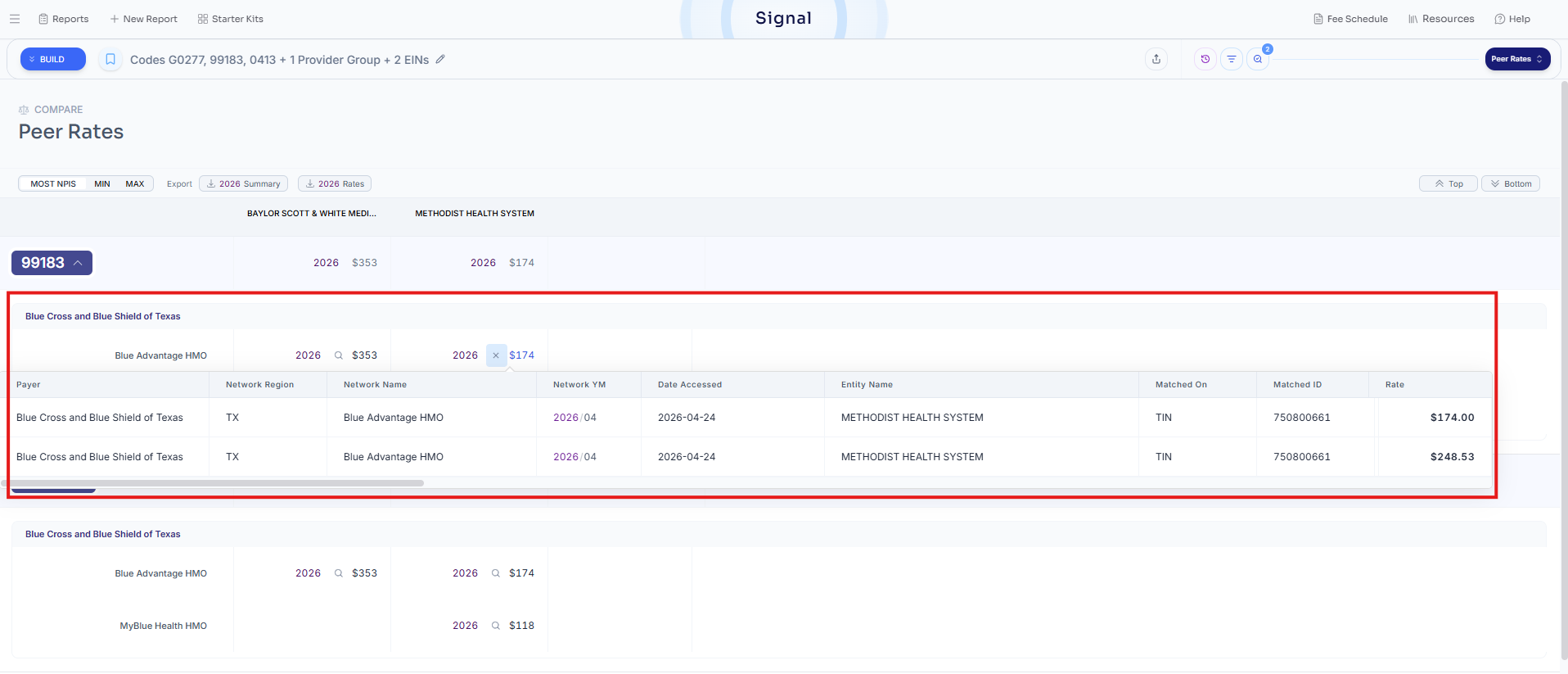
If you have a question on what a certain attribute means, please consult our data dictionary.
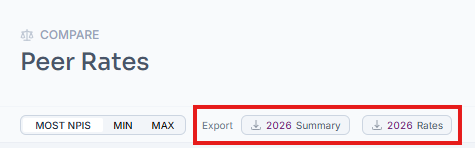
To download the summary panel or the underlying data used in the output summary as a CSV file, click the data export button.
Other important notes:
Peer Rates mode only performs searches on entries in the 'EIN' field. This means we do not search NPIs in provider groups.
For each payer and code, Peer Rates will aggregate across all the relevant 'EIN' entries in the provider group. For example, let's say your provider group has 2 EINs: '871927518', '841856765' and you search 90837 in Cigna:

The raw data has 3 entries: 1 for EIN 871927518 (top row) and 2 for EIN 841856765 (bottom two rows).
In Peer Rates, you will see the following result depending on which aggregation method you choose:
Most NPIs: This will grab the last row with 6745 npi's and return the rate as $109
Min: This will grab the second row with 1 npi in Colorado and return the rate as $74
Max: This will grab the first row with 1419 npis and return the rate as $109
If you have any further questions, please reach out to support@serifhealth.com.